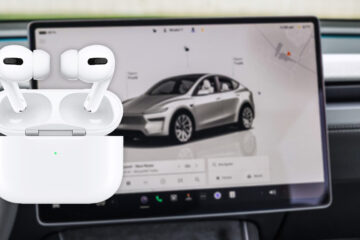
AirPods Go Silent Once My iPhone Connects to My Tesla! How to Fix It?
Frustrated because your AirPods go silent the moment your iPhone connects to your Tesla? You’re not alone. Many Tesla owners face this exact Bluetooth audio routing issue where all sound switches to the truck’s premium speakers, leaving AirPods with no audio.
The Good News:
You can fix the AirPods no sound Tesla problem and enjoy active sound on your AirPods and the Tesla speakers, often at the same time using smart workarounds. This step-by-step guide works with the latest iOS 26 and Tesla software.
Why AirPods Lose Sound When Connected to Tesla
iOS treats Bluetooth audio outputs as exclusive by default. When your iPhone auto-connects to the Tesla as a “Car Stereo,” it routes all media audio to the truck, muting your AirPods even though they remain paired.
Tesla’s system prioritizes seamless in-car audio, but this creates conflicts with personal headphones. The solutions below resolve the audio routing and let you control where sound plays.
Quick Fixes: Restore AirPods Sound in Under 60 Seconds
- Manually Switch Audio Output (Fastest Fix)
Swipe down from the top-right corner of your iPhone to open Control Center.
Long-press or tap the Now Playing card, then tap the AirPlay icon (triangle with circles).
Select your AirPods from the list. Sound should return instantly to your AirPods.
- Enable “Keep Audio with Headphones” (Prevents Auto-Switching)
Go to Settings → General → AirPlay & Continuity.
Toggle ON the option “Keep Audio with Headphones”.
This feature (introduced/enhanced in recent iOS versions) stops your iPhone from automatically routing audio to the Tesla when you enter the vehicle.
- Set Tesla as Car Stereo in Bluetooth Settings
Go to Settings → Bluetooth.
Tap the ⓘ icon next to your Tesla.
Set Device Type to Car Stereo.
This helps reduce Bluetooth priority conflicts.
How to Get Sound on BOTH AirPods and Tesla Speakers Simultaneously
True simultaneous playback of the exact same audio stream from one iPhone app isn’t natively supported via Bluetooth due to Apple and Tesla limitations. However, these proven workarounds give you active audio on both devices:
Workaround 1: Separate Audio Sources (Recommended for Most Owners)
- Play music, podcasts, or media directly from the Tesla touchscreen (built-in Spotify, Apple Music, Tesla browser, or FM radio) → audio plays through the truck’s speakers.
- Use your iPhone for navigation voice prompts, personal calls, podcasts, or other apps routed to your AirPods.
With “Keep Audio with Headphones” enabled, both sources play independently without interference. This is the best way to enjoy private listening and full truck audio at the same time.
Workaround 2: Pair AirPods Directly to the Tesla
For private listening of the truck’s audio while others can still hear speakers (or for backseat use):
- On the Tesla touchscreen, go to Bluetooth → Add Device (or the phone/media Bluetooth menu).
- Open your AirPods case and press and hold the setup button on the back until the status light flashes white.
- Select your AirPods on the Tesla screen and complete pairing.
You can now route Tesla media audio directly to your AirPods. Switch the truck’s output back to speakers anytime via the audio controls.
Workaround 3: Full Bluetooth Reset (When Nothing Else Works)
- On your iPhone: Go to Settings → Bluetooth, tap the ⓘ next to Tesla, and choose Forget This Device.
- On the Tesla: Forget your iPhone from the Bluetooth menu.
- Reboot the Tesla — hold both steering wheel scroll wheels for about 10 seconds until the screen restarts.
- Re-pair your iPhone and AirPods, then enable “Keep Audio with Headphones” again.
Bonus Pro Tips for Tesla + AirPods Audio
- Keep your iPhone, AirPods, and Tesla software fully updated.
- Check volume levels on iPhone, AirPods, and the Tesla media slider.
- Phone calls often route through the Tesla speakers while media stays on AirPods — test different scenarios.
- Rear passengers can use the Tesla rear screen’s Bluetooth headphone pairing for independent audio.
- If issues persist after resets, restart your iPhone or contact Tesla Service for potential firmware glitches.
You no longer need to choose between your AirPods and the Tesla’s powerful sound system. By enabling “Keep Audio with Headphones” and using separate audio sources or direct pairing, you can achieve active sound on both devices effectively.
Bookmark this guide for future reference and share it with other Tesla owners facing the same AirPods Bluetooth issue.
Safe driving and happy listening! 🚀🎧
Related searches: fix AirPods no sound Tesla, AirPods and Tesla audio same time, iPhone Bluetooth Tesla AirPods issue, Tesla audio routing fix.